Installing a package
Quick Navigation
Tutorial Skill Level: MEDIUM
Using a Binary
You can install digiKam using a pre-compiled binary version provided by your distribution. However, the version available may not always be the latest stable release from the digiKam team. The links below provide information about the versions packaged by your distribution.
 Linux AppImage
We recommend to run digiKam for Linux using our self-contained and universal AppImage Bundle available here. It’s just an executable file to download on your home directory. Nothing is installed on your computer and this bundle do not use sandboxing limitation. See the relevant online documentation for details.
 Linux Native
If you prefer to use a Native Linux Package, see below a short list of possible distribution links:
| Linux Distribution | Repository | Installation |
|---|---|---|
 Kubuntu Kubuntu | here | sudo apt install digikam |
 Ubuntu Ubuntu | here | sudo apt install digikam |
 Debian Debian | here | sudo apt install digikam |
 Launchpad PPA (Debian-Alt) Launchpad PPA (Debian-Alt) | here | sudo apt install digikam |
 Arch Linux Arch Linux | here | sudo pacman -Sy digikam |
 Ark Linux Ark Linux | here | sudo apt install digikam |
 Mageia Linux Mageia Linux | here | sudo urpmi digikam |
 SUSE Linux SUSE Linux | here | sudo yast -i digikam |
 Fedora Linux Fedora Linux | here | sudo dnf install digikam |
 Gentoo Linux Gentoo Linux | here | sudo emerge digikam |
 Linux Sandbox
If you prefer to use a Sandboxed Linux Bundle, see below a list of self contained packaging links.
 Important: these sandboxed bundles need rights to access to the system resources, as the camera, the disk, and the network. Without to configure the sandboxing permissions, the application will be unusable.
Note: digiKam project do not manage these kind of packaging. If you have problems, please report to the right issues tracking system listed below.
| Sandboxed Bundle | Application Permissions | Issues Tracker | Installation |
|---|---|---|---|
 Flatpak Package Flatpak Package | read the doc | FlatHub Team | sudo flatpak install flathub org.kde.digikam |
 Snap Package Snap Package | read the doc | Neon Team | sudo snap install digikam |
 macOS
macOS
You can install digiKam for macOS using our self-contained package available here.
Minimum requirement:
 Silicon: macOS Big Sur (11.3) or later (recommended).
 Intel: macOS High Sierra (10.15) or later.
Important: Apple applications are sandboxed and need rights to access to the system resources, as the camera, the disk, and the network. Without to configure the sandboxing, the application will be unusable.
See the relevant online documentation for details.
 Windows
You can install digiKam for Windows using our self-contained installer available here.
- Minimum requirement: Windows 10 for Intel computers.
- Portable version: We also provide a portable archive file (tar.xz). Simply decompress the content to a convenient location, then double-click the digiKam icon in the folder. This will not affect an installed version of digiKam, but it will share settings with your regular installation.
See the relevant online documentation for details.
 FreeBSD
The list of digiKam packages in FreshPorts can be found here.
 Internationalization
If you installed digiKam using your Linux distribution package, language files should be included, allowing you to run digiKam in any supported language.
- Changing the language: Use the Help Menu in digiKam to change the default language.
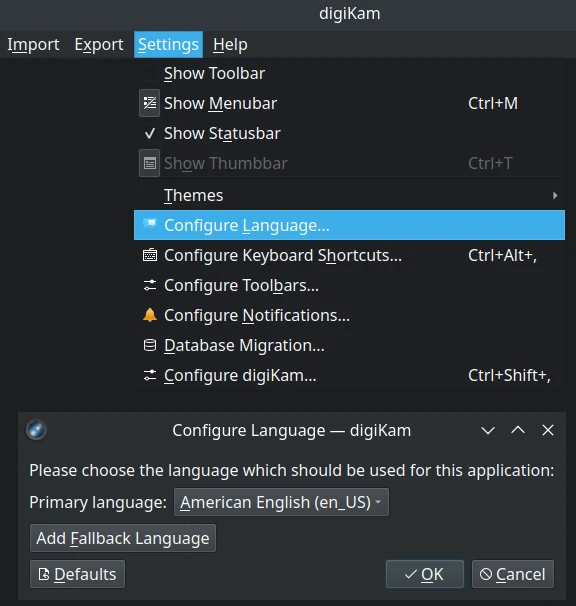
Adding a language: If your language is not available, you can add it by installing the specific language pack. For example, on Debian-based distributions, to add French:
sudo apt-get install language-pack-kde-fr-base
sudo apt-get install language-pack-kde-fr
Note: Linux AppImage, Windows, and macOS bundles already include all translation files.